
SOLVED: The user profile service failed the logon. User profile cannot be loaded
Actually there is no exact reason why this is happening in windows but this issue may occur if The C:Users(user-name) user profile folder was manually deleted instead of properly deleting the user account through User Accounts in the Control Panel. A user profile that is manually deleted does not remove the security identifier (SID) from the profile list in the registry. Since the SID is still present, Windows 7 will still try to load the profile by using the ProfileImagePath that points to a nonexistent path. Therefore, the profile cannot be loaded or The C:Users(user-name) user profile folder itself was manually renamed, instead of using the proper method in this tutorial or A unknown issue with the user profile entering into a backup state occurred or Corrupted user profile or Occasionally, Windows 7 might not read your user profile correctly, for example, if your antivirus software is scanning your computer while you try to log on. Try restarting your computer and logging on.
Follow the option below If The user profile service failed the logon or User profile cannot be loaded appears while attempting to logon in Windows 8,7,vista or 2008.
1) Safe Mode
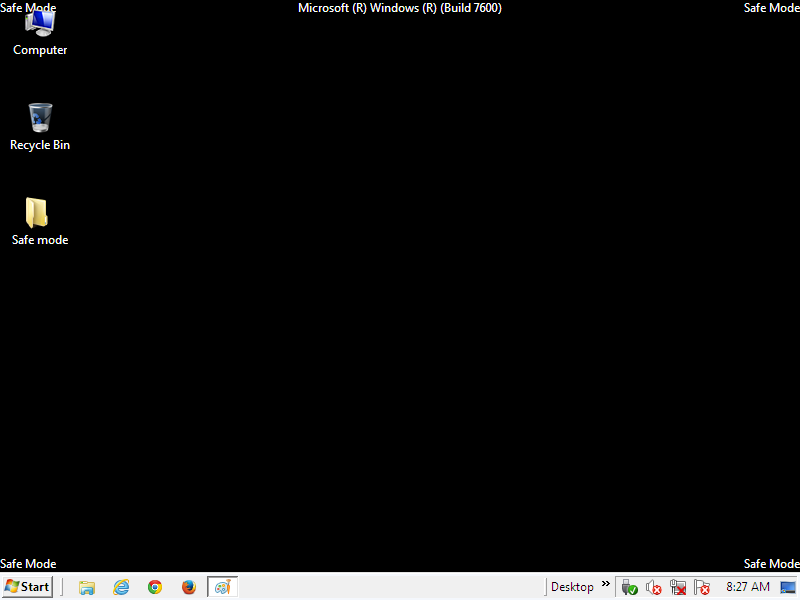
You can try to fix with “Safe Mode” repeatedly tap F8 as you bootup. The ADMIN account in Safe. Reboot it and start your computer in safe mode, then log on using the Administrator (or an Administrator-level) account.
2) Through the Registry Editor
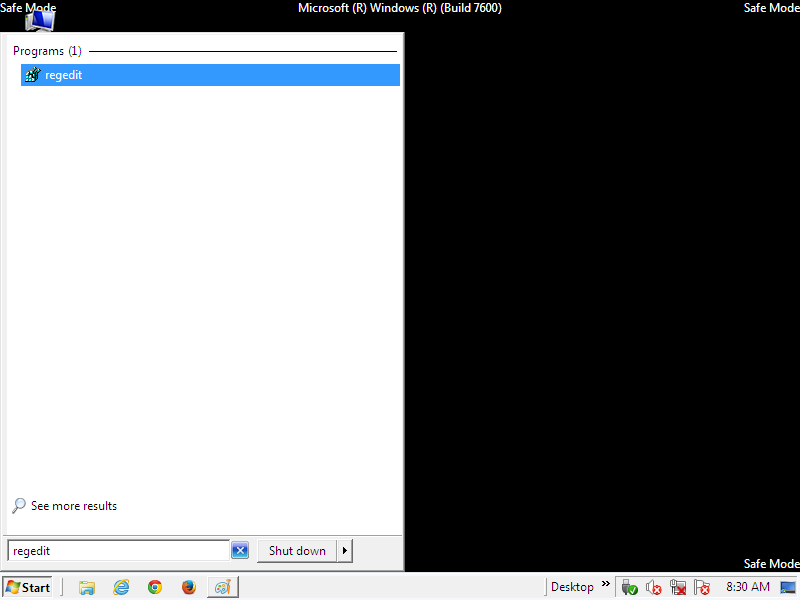
Open the start menu. Type regedit in the start search or in Run and press enter,If prompted by UAC, then click on Yes.
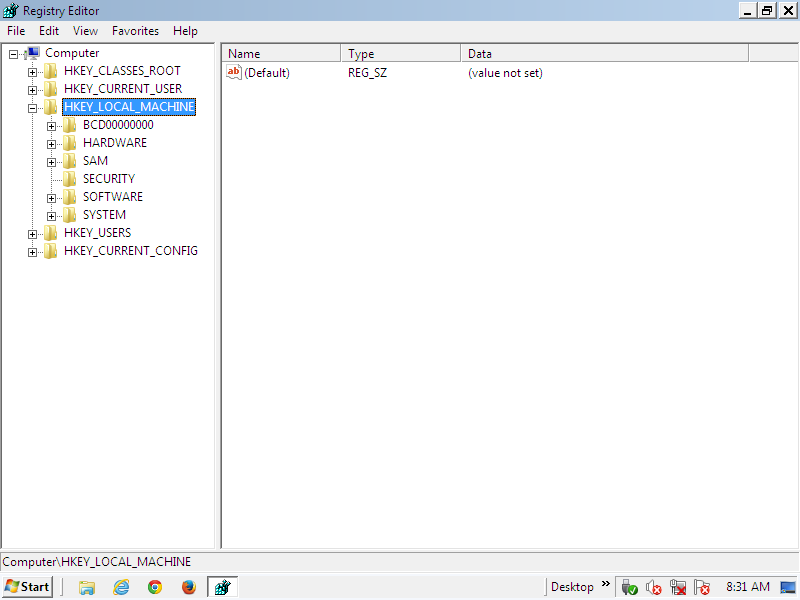
In Registry Editor go to
HKEY_LOCAL_MACHINESOFTWAREMicrosoftWindows NTCurrentVersionProfileList
In the left pane, click on a S-1-5 (SID) key with a long number. Expand the ProfileList key and look for the SID key (named “S-1-5″…) with a long number that ends in “.bak”. Click it, and look at the ProfileImagePath value in the right pane to verify that this is the user account profile that has the error.
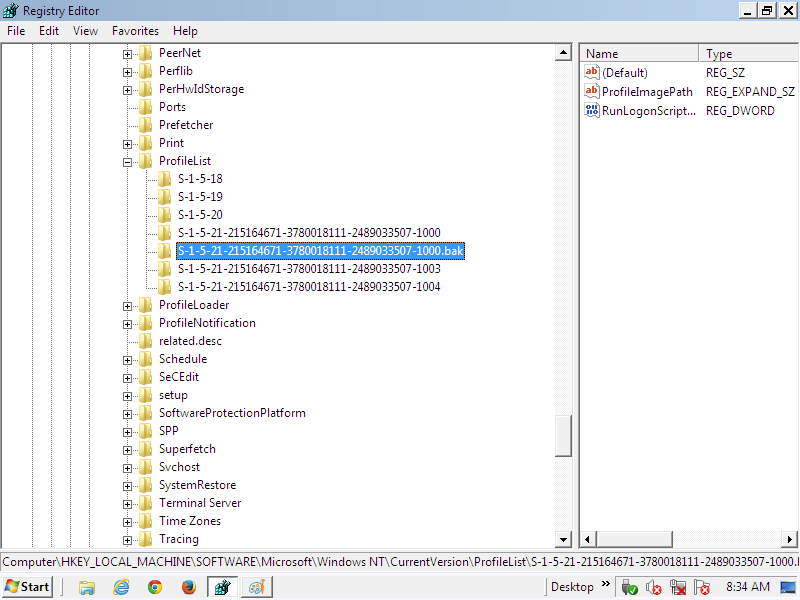
NOte : This is if you have two S-1-5 folders (SID key) with the exact same long numbers, but the second one has .bak at the end of the long numbers and the first one doesn’t then continue to Step b) if not then continue to Step a).
a) If you have Only One S-1-5 (SID) key with .bak
Right-click the SID key that corresponds to the affected user account and click Rename.
Remove only .bak from the end of the numbers, and press Enter.
In the right pane, right-click the RefCount value (if none exists, right-click the right pane and click New and DWORD (32 bit) Value, then type RefCount and press Enter), and click Modify.
Type 0 into the Value Data textbox and click OK.
In the right pane, right-click the State value and click Modify.
Type 0 into the Value Data textbox and click OK.
b) If you have Two S-1-5 (SID) keys with the Same Long Numbers
Of the two SID keys that corresponds to the affected user account, right-click the SID key that does NOT end in “.bak” and click Rename.
Add .bk to the end of the numbers and press Enter.
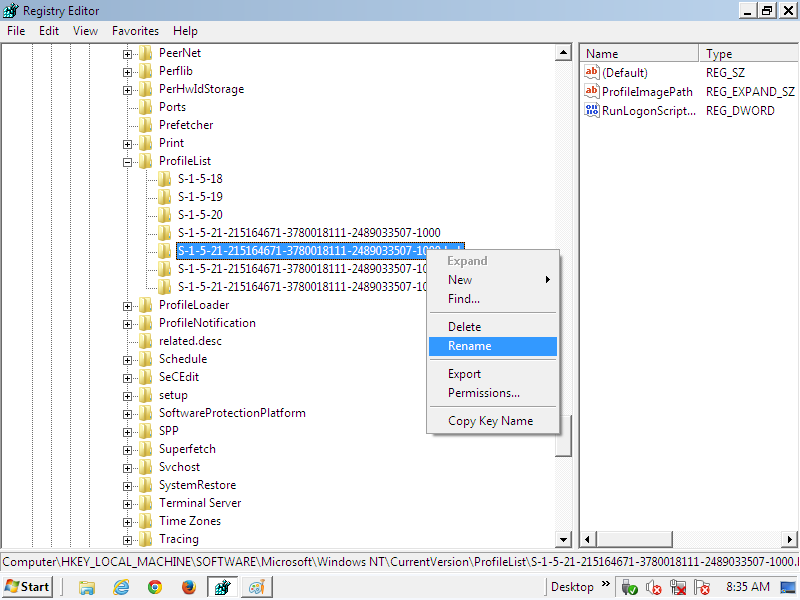
Right-click the other SID key that DOES end in “.bak” and click Rename.
Remove only .bak from the end of the numbers (so that it has the same name as the other SID key did before you renamed it) and press Enter.
Now go back and Rename the first one with .bk to .bak now at the end of the numbers and press Enter.
3) Close regedit, and restart the computer.
Now you are able to log on to the account without getting this error.
