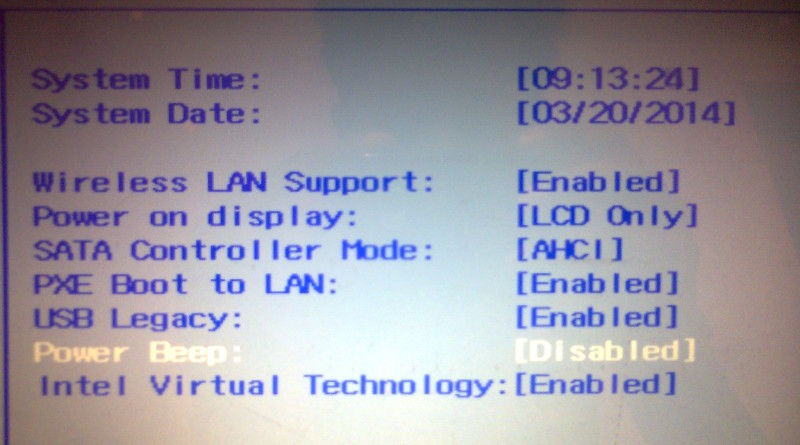
How to Disable/Enable Power Beep sound on Computer
Sometime computer charging beep sound really annoying to us. Some computer doesn’t allow to configure with it’s main volume, so we need to disable with BIOS option. Here is a small procedure to disable computer’s charging beep sound. For some computer the beep sound indicates the adapter is starting or stopping the power supply. The sound comes from the trumpet instead of the speakers. When you plug in or out the adapter, the PC will beep. To cancel the sound, you need to go to “Master Volume” –> “PC Beep” to turn down or mute the sound. The action only takes effect within the operating system. When you plug in or out the power adapter in BIOS or during One Key Recovery operation, the sound will also come. Follow the procedure below to Disable/Enable Power Beep sound on Computer. First of all you need to go BIOS options so that shutdown your pcNote: In windows 8 computer doesn’t shutdown completely, so you need to do full shutdown
• After full shutdown, power on your computer and press “F2” key to enter BIOS
• You can see BIOS options in your computer screen and go to “Configuration”
• There are severl options will appear such as “System time”, “Wireless lan support” etc, Finally you are able to see “Power Beep” option. Go to “Power Beep” option and disable and save it.
• For Enable Power Beep sound you have to do same procedure given above

Note : For change values, select and save follow the key structure which is given in bottom side on your BIOS
